Command-line hacking: a really simple console music player

I often play music from a command prompt on my Linux systems. Yes, that’s just the way I am. I have a colossal number of albums I’ve ripped from my own CDs, going back about thirty years. I usually organize them on disk in a one-directory-per-album layout but, of course, other arrangements are possible; it’s a matter of preference.
When I play music, I usually play an entire album. So I really just need a way to select a directory from a tree/list, and play everything in it, in alphanumeric order of filename. Not a difficult job, you’d think.
There are, of course, many graphical audio players for Linux, of
which Strawberry is currently my favourite. There are also a few
console-based audio players, like cmus, and graphical media
players might also have a console interface – VLC does. There’s even my
own vlc-server,
which has console, command-line, and web-based interfaces.
At a pinch, I can just run
$ mplayer /path/to/some/music/*.flacSometimes, though, all I want to do is select a directory to play from a scrollable list in the console. I’d like to be able to navigate the folder structure using common keyboard actions like page-up and page-down, find what I want to play, and hit a key to get it played.
Ideally I’d like to be able to do this not only by scrolling a list of folders, but by navigating the metadata tags of my audio files. That’s a bit more problematic than simply browsing a directory tree, but not intractable – more on this later.
The problem with existing console-based music players
Some of the common console audio players have a file browser built in, but I’m not sure how much thought was given to these implementations. VLC has an ncurses (console) interface which you can invoke by running
$ vlc -I ncurses /path/to/files...Unfortunately, VLC adds the entire set of files in all subdirectories to its playlist, and there’s no way (that I could find) of clearing the playlist and starting again. It’s a shame because VLC (with ncurses) is almost a self-contained console audio player. But not quite – not with a large set of audio files, anyway.
Another possibility is cmus, a dedicated console-based
player. cmus, again, is almost there. It has a
problem, thought: it’s fiddly to simply play all the files in a selected
directory – cmus wants to maintain a library.
Unfortunately, the only way it can display the contents of the library
is by dividing the collection up into artists. If you like to browse
within particular genres, or dates, or anything else except the artist
tag, you’re our of luck.
The sad fact is that none of the common console-based music players, so far as I can see, can do the simple job I want.
A simple solution
My solution is to use the nnn file browser, in
combination with any player that can play files and directories whose
names are given on the command line. The ability to play directories is
important, because I want to select and play a whole directory.
mplayer, unfortunately, does not play directories – it
takes only files or URLs on the command line. To use
mplayer we’ll need a helper script, which I’ll describe
later.
VLC (with ncurses interface), on the other hand, will take a directory on the command line, and is smart enough to filter out any files that aren’t actually media. So my starting point is a file selector, combined with VLC with its ncurses interface.
Note
I’ll be using a script callednvlcwhich just runsvlc -I ncurses. This is part of the VLC package on my Linux distribution but, if you don’t have it, it will only take a minute to write.
What about a file selector? There are many console-based file
managers; at a pinch you can even use vim as a file
manager. Unfortunately, these utilities are really designed for managing
files – copying, moving, and deleting them – rather than simply
selecting them.
nnn is a console-based file manager which can be used as
a simple file/directory picker. On Debian-like systems you can get it
using:
$ sudo apt install nnnWhen used in its ‘file picker’ mode, with the -p switch,
nnn writes the files and directories you select to a file
or to standard out. From there, you can feed them into the audio player
as command-line arguments.
So my simple console music selector amounts to running this:
$ nvlc "$(nnn -p - /path/to/music)"Within the file picker, just locate the file or directory using the
arrow keys for navigation, and the space bar to select it; then quit the
file picker using ‘q’. The player (nvlc in this case) will
start up and play the file or directory you selected. When it’s
finished, it will stop playing. You could wrap the nvlc
command in an endless while loop if you want instead to
return to the file picker when playback has finished.
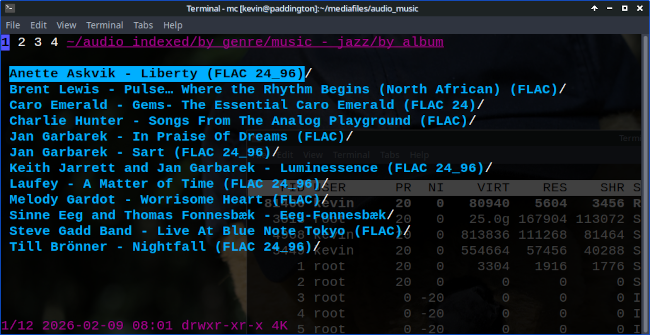
In use, my scheme looks like this:
Note
Hitting ‘enter’ on a directory expands the directory. If you want to play a directory, rather than a file within it, hit ‘space’ to mark it.
A lighter solution
nnn is a very simple program, which uses minimal
resources. VLC however, even with the ncurses interface, is a
substantial piece of software. For simple console playback, I’d rather
use mplayer, or even mpg123 if I’m playing
only MP3 files.
Sadly, mplayer lacks a way to play a whole directory, so
we need a helper script that will take a directory on the command line,
and expand it into files. It should include only audio files, if
possible. Of course, it needs to be able to play individual files,
too.
Here is a simple helper script that does this job. I’ve saved it as
/usr/bin/vplay.
#!/bin/bash

PLAYER=mplayer
PLAYER_ARGS=(-nogui -vo null)

file_list=()

function add_file_if_valid
  {
  file=$1
  if [ "${file: -4}" == ".mp3" ] \
      || [ "${file: -5}" == ".flac"  ] \
      || [ "${file: -4}" == ".m4a"  ] \
      || [ "${file: -4}" == ".m4b"  ] \
      || [ "${file: -4}" == ".ogg"  ] ; then
    if [ -f "$file" ] ; then
      file_list+=("$file")
    else
      echo File not found: $file
    fi
  fi
  }

function expand_dir
  {
  dir=$1
  for file in "$dir"/* ; do
    add_file_if_valid "$file"
  done
  }

if [ -z "$1" ] ; then
  echo Usage: $0 {files or directories}
  exit
fi

for file in "$@" ; do
  if [ -d "$file" ] ; then
    expand_dir "$file"
  else
    add_file_if_valid "$file"
  fi
done

if (( ${#file_list[@]} != 0 )); then
    $PLAYER "${PLAYER_ARGS[@]}" "${file_list[@]}"
else
    echo $0: no valid audio files on the command line.
fi
With this script in place, I can run my console music selector like this:
$ vplay "$(nnn -p - /path/to/music)"Note
When runningmplayerthis way, with a set of files from a particular directory, you can use the ‘>’ and ‘<’ keys to skip back and forth between tracks, as well as the usual keys thatmplayerprovides for navigating within a track.
The problem of metadata
So far, so good: with relatively simple tools, I can select a file or directory from a list, and have it played by the media player. Since I’m quite fussy about how I organize my music files, this suits my needs most of the time.
Sometimes, though, it’s nice to be able to browse using something other than the basic directory structure. I might like to look, for example, at albums with a specific genre tag, or a specific composer.
At this point, it’s probably best to use a console music player that
offers this feature; oh, wait – there’s not one. That’s one of the
reasons I wrote vlc-server. Again, though, being based on
VLC, it’s a bit weighty for a simple job.
There is another way to solve this problem, which kind-of works. It takes advantage of the fact that a file can appear in multiple directories using symbolic links.
So I might have directories like this:
music
  jazz
    albums
      Dave Brubeck - Time Out
        Track1.flac
        Track2.flac
        ...
  artists
    Dave Brubeck
      albums
        Dave Brubeck - Time Out
          Track1.flac
          Track2.flac
          ...
The key point is that the various Track1.flac files are
not regular files at all: their symlinks to the same file in some master
directory. The music directory, in fact, conists only of
directories and links, and can freely be deleted and recreated.
With this ‘index directory’ in place, I can use nnn to
browse within the metadata just as I do within an ordinary
directory.
But how to create the directory structure, based on audio metadata?
It turns out to be (relatively) simple with a bit of scripting. We
need to enumerate every file in the master music directory, and get its
metadata. There are various ways to do this; a simple approach is to use
ffprobe, which is part of the ffmpeg
package.
$ ffprobe -loglevel quiet -show_entries format_tags "$file"This produces output of the form:
[FORMAT]
TAG:TITLE=1 Blue Rondo A La Turk
TAG:ARTIST=Dave Brubeck
TAG:ALBUM=Dave Brubeck - Time Out (FLAC)
TAG:track=01
TAG:GENRE=music - jazz
TAG:COMPOSER=Brubeck, Dave
[/FORMAT]
It’s easy enough to parse out the specific tag values using a mixture
of grep and cut, although we do have to be a
bit careful because, for some reason, the tag names don’t appear with
consistent letter case.
With the tag values extracted, we can create the files and symbolic
links in our ‘index’ directory with combinations of mkdir
and ln -sf.
Because I might delete audio files from my collection, as well as adding new ones, the final job the script has to do is to purge all the links and directories that no longer point to valid targets.
I’m not going to present my script that does this job, for two reasons.
First, it’s an ugly hack.
Second, in practice I don’t use ffprobe for this,
because it’s too slow. ffprobe is way too heavyweight for
extracting tags, even though it supports a huge range of file types.
Instead, I use a
utility I wrote myself in C. My utility is nowhere near as
comprehensive as ffprobe, but it handles all the types of
audio file I use.
I could be persuaded to share my index-creation script, if anybody was interested; but implementing something like this is a good exercise in script hacking.
Final thoughts
It’s a shame that, after all this time, there aren’t any simple, lightweight, console-based music players for Linux that really work. Some come close, but none suits my needs which, frankly, are not demanding.
My solution, using a command-line audio player and nnn
as a file picker is hardly elegant, but it is at least lightweight and,
in fact, works quite well for my simple purposes.
Have you posted something in response to this page?
Feel free to send a webmention
to notify me, giving the URL of the blog or page that refers to
this one.


